Event Tour
Staff
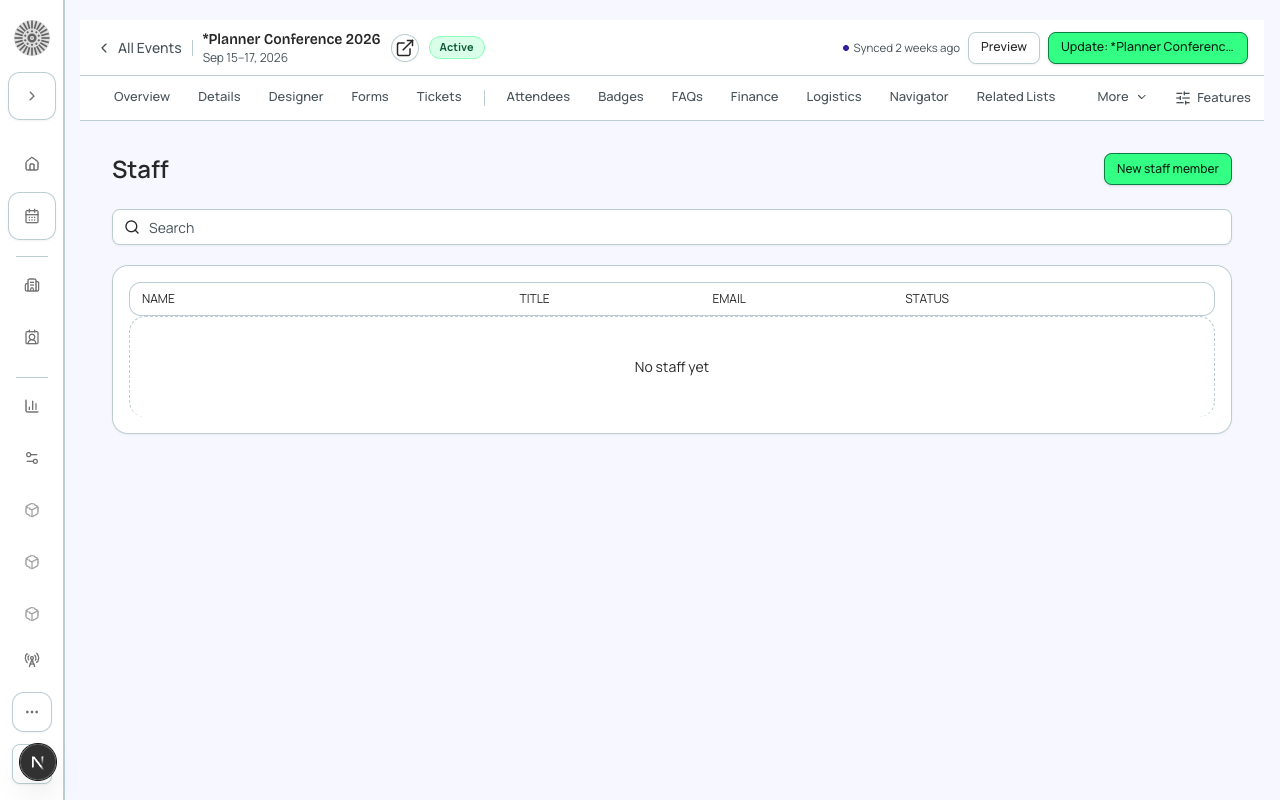
The Staff tab manages internal team members who are working the event — event coordinators, venue liaisons, volunteers, and other non-attending roles. Staff records are internal only and do not appear on the public registration page.
Staff vs. Attendees
Staff and Attendees are distinct record types in Forge. An attendee is a person who registered for the event (and has an Attendee record in Salesforce). A staff member is someone working the event — they may or may not also be a registered attendee. You can flag a staff member as 'Also Attending' if they need a registration record.
Adding Staff
- Go to the Staff tab and click 'Add Staff Member'.
- Search for a Salesforce Contact or User record.
- Assign a role (e.g., 'Event Coordinator', 'Registration Desk', 'A/V Technician').
- Assign to a department or shift if applicable.
- Save. The staff member can now be assigned to sessions or check-in stations.
Staff Roles and Permissions
Staff roles are freeform labels for internal organization — they do not affect Forge system permissions. System permissions (who can edit event settings, run reports, etc.) are controlled by Salesforce profiles and Forge permission sets, not by the staff role field.
Staff and Check-in
Staff members assigned to the Check-in role can log into the Forge Check-in companion app using their Salesforce credentials and scan attendee QR codes. Forge Admin permission is not required — only the Forge Check-in permission set.
Check-in app is a separate install
The Forge Check-in app is a companion mobile/tablet application. Staff members download it from the App Store or Google Play and authenticate with their Salesforce org credentials.