Event Tour
Location
The Location tab configures the physical or virtual venue for your event — venue name and address, map, parking notes, accessibility information, and virtual meeting links. The information entered here appears on the registration page and in confirmation emails.
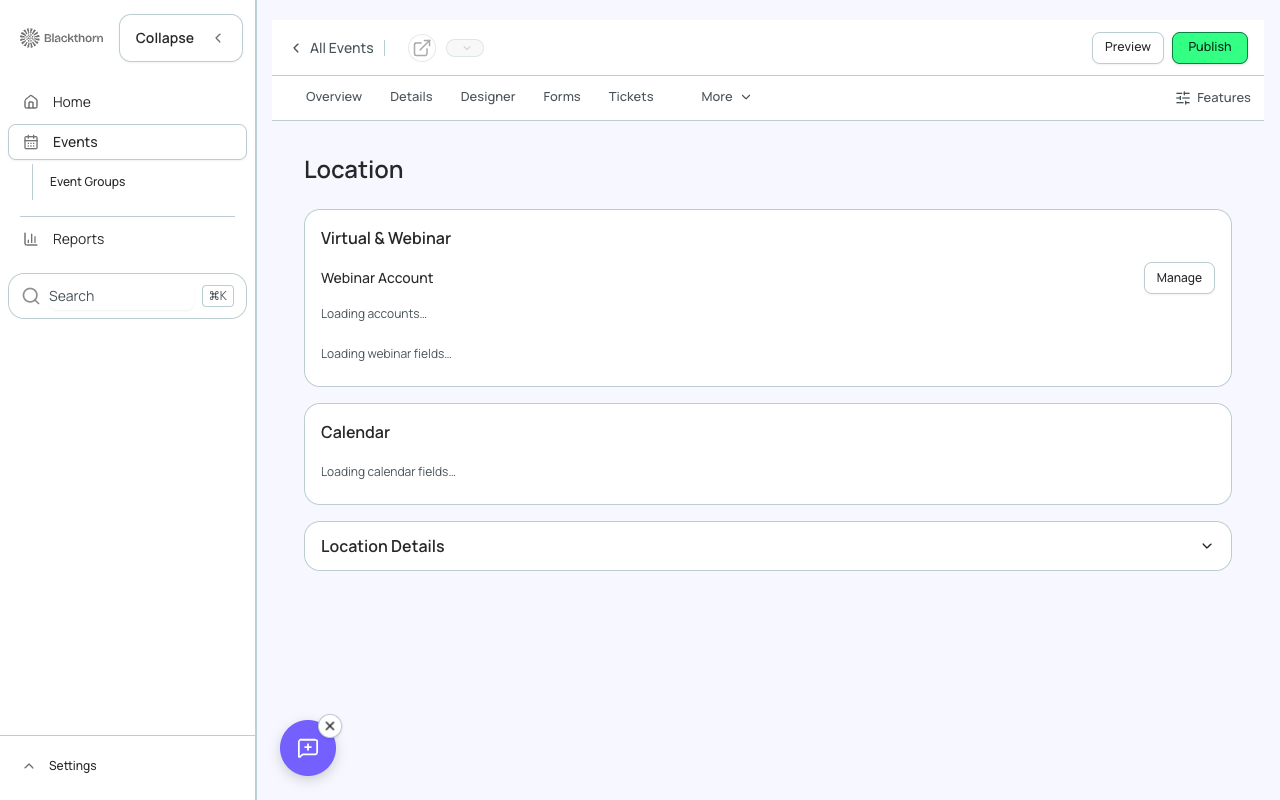
In-Person Venue Settings
- Venue Name — displayed prominently on the registration page.
- Street Address — enables the embedded map. Forge uses the address to generate a Google Maps link.
- City, State/Province, Postal Code, Country — required for map accuracy.
- Venue Website — linked from the registration page.
- Parking Instructions — free text shown in a collapsible section.
- Accessibility Notes — free text describing accessibility features (elevators, ramps, assistive listening devices).
- Room / Hall Name — the specific room within the venue (e.g., 'Grand Ballroom A').
Virtual Event Settings
For virtual or hybrid events, configure the webinar link and platform details.
- Webinar URL — the meeting link (Zoom, Teams, Webex, etc.). This is revealed to registrants only after their registration is confirmed, preventing link leakage.
- Webinar ID and Passcode — optional; shown alongside the link in confirmation emails.
- Platform — choose the platform for icon display (Zoom, Teams, Webex, YouTube Live, custom).
- Instructions — any join instructions, such as 'Download the Zoom app before joining'.
Link security
Virtual meeting links are only shown to attendees with status Registered or Attended. Waitlisted and Invited attendees see 'Link will be available after registration is confirmed'. This prevents link sharing before payment or confirmation.
Hotel Block (beta)
When the Hotels beta feature is enabled, you can add a hotel block to the Location tab — room block name, hotel address, cutoff date, and booking link. This appears as a 'Book Your Hotel' section on the registration page.
Beta feature
Hotel block management is in beta. Enable from the /beta settings page.