Event Tour
Attendees and Registrations
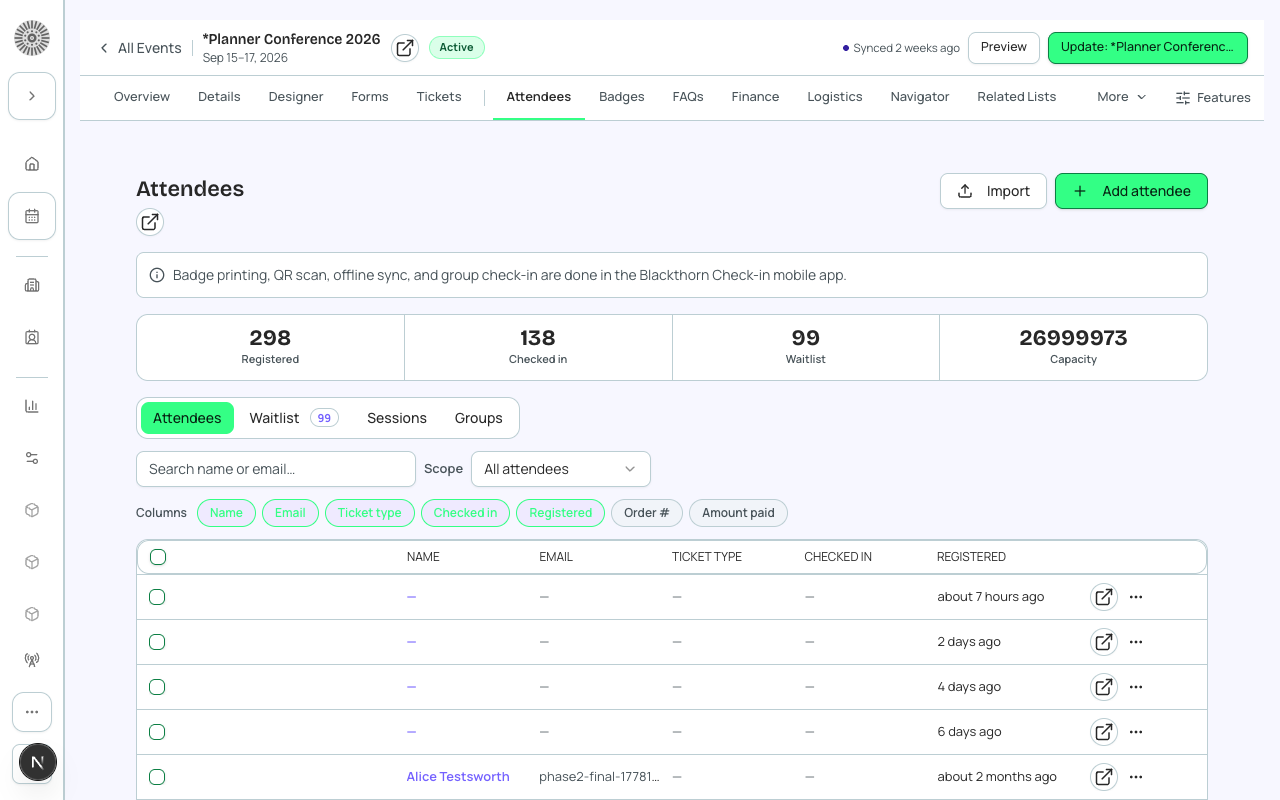
The Attendees tab is your real-time view into who is registered for an event. It shows every attendee record with their status, ticket type, registration date, and payment state. From here you can manage individual attendees, process manual registrations, issue refunds, and export the attendee list.
PII handling — attendee data
Attendee names, email addresses, phone numbers, and mailing addresses are stored exclusively in Salesforce (on the conference360__Attendee__c record and its linked Contact or Lead). Forge fetches this data just-in-time and never writes it to its own Postgres database. Do not capture or export attendee PII outside of Salesforce-approved workflows.
Registration Statuses
| Status | Meaning | Actions available |
|---|---|---|
| Registered | Confirmed attendee. For paid tickets, payment has been completed. | Check in, transfer, cancel, resend confirmation |
| Waitlisted | Event or ticket is at capacity. Attendee is in queue. | Promote to Registered, cancel |
| Invited | Attendee has been invited but has not completed registration. | Resend invite, mark as No-show, cancel |
| Attended | Attendee was checked in at the event (via the Check-in app). | View check-in time, add notes |
| Cancelled | Registration has been cancelled. Seat is freed; refund may be due. | Re-register (creates a new record) |
| No-show | Attendee was registered but did not check in. | View record, add notes |
Filtering and Searching Attendees
Use the filter bar above the attendee list to narrow by status, ticket type, registration date, session enrollment, or custom form answers. The search box supports name and email search. Results are capped at 20 per page — click Show More to load additional records.
Manual Registration
To register someone manually (offline or for comped tickets):
- Click 'Add Attendee' in the top-right of the Attendees tab.
- Search for an existing Salesforce Contact or Lead by name or email, or create a new contact inline.
- Select the ticket type.
- Set the payment status (Complimentary, Invoice, or mark as paid).
- Save. The attendee record is created in Salesforce immediately.
Groups
Groups let multiple attendees register together — useful for corporate table purchases or family registrations. A group has one primary registrant (the 'group leader') and one or more group members. The group leader's contact is charged the total order.
Waitlist Management
When the event reaches capacity, new registrants are automatically waitlisted. Waitlisted attendees receive a 'You are on the waitlist' email. When a spot opens (via cancellation), the first person on the waitlist is automatically promoted to Registered and sent a confirmation email.
- To manually promote a waitlisted attendee, open their record and click 'Promote to Registered'.
- To see the full waitlist in order, filter the Attendees tab to 'Waitlisted'.
- Waitlist position is displayed on the attendee's record.
Exporting Attendees
Click 'Export' in the Attendees tab to download a CSV of the current filtered view. The export includes name, email, ticket type, registration date, and status. PII fields (email, phone) are included — handle the file securely.
Check-in
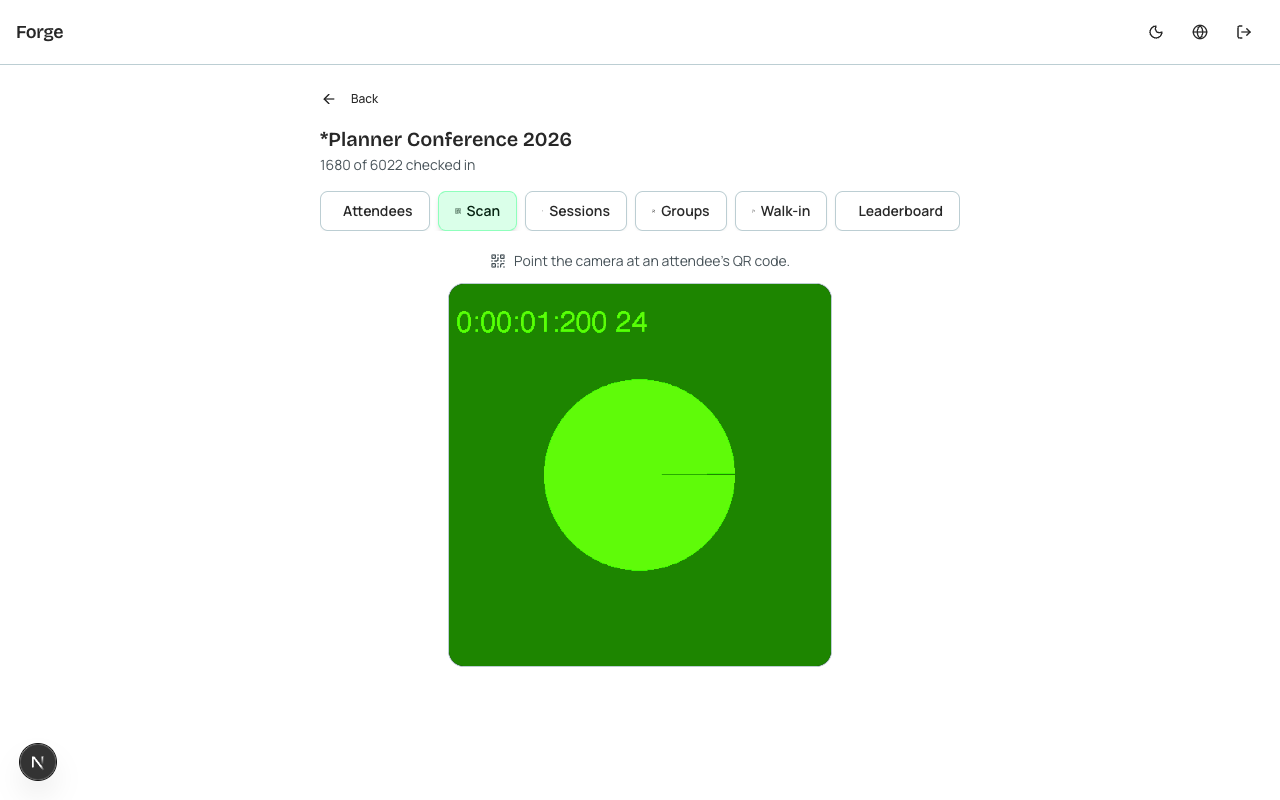
Check-in is handled via the dedicated Forge Check-in app (a companion mobile/tablet app) or via the Attendees tab's check-in button for manual check-in. Checked-in attendees move to 'Attended' status.
| Forge | SF Object | SF Field |
|---|---|---|
| Attendee first name | conference360__Attendee__c | conference360__First_Name__c |
| Attendee last name | conference360__Attendee__c | conference360__Last_Name__c |
| Attendee email | conference360__Attendee__c | conference360__Email__c |
| Registration status | conference360__Attendee__c | conference360__Status__c |
| Linked Contact | conference360__Attendee__c | conference360__Contact__c |
| Linked Lead | conference360__Attendee__c | conference360__Lead__c |
| Parent event | conference360__Attendee__c | conference360__Event__c |