Global Tour
Home and Roadmap
The Home screen is the first thing you see when you log in to Forge. It gives you a live pulse on your events portfolio — upcoming events, recent activity, and quick links to where you need to go. The Roadmap panel shows what the Forge team is shipping next, so you always know what is coming.
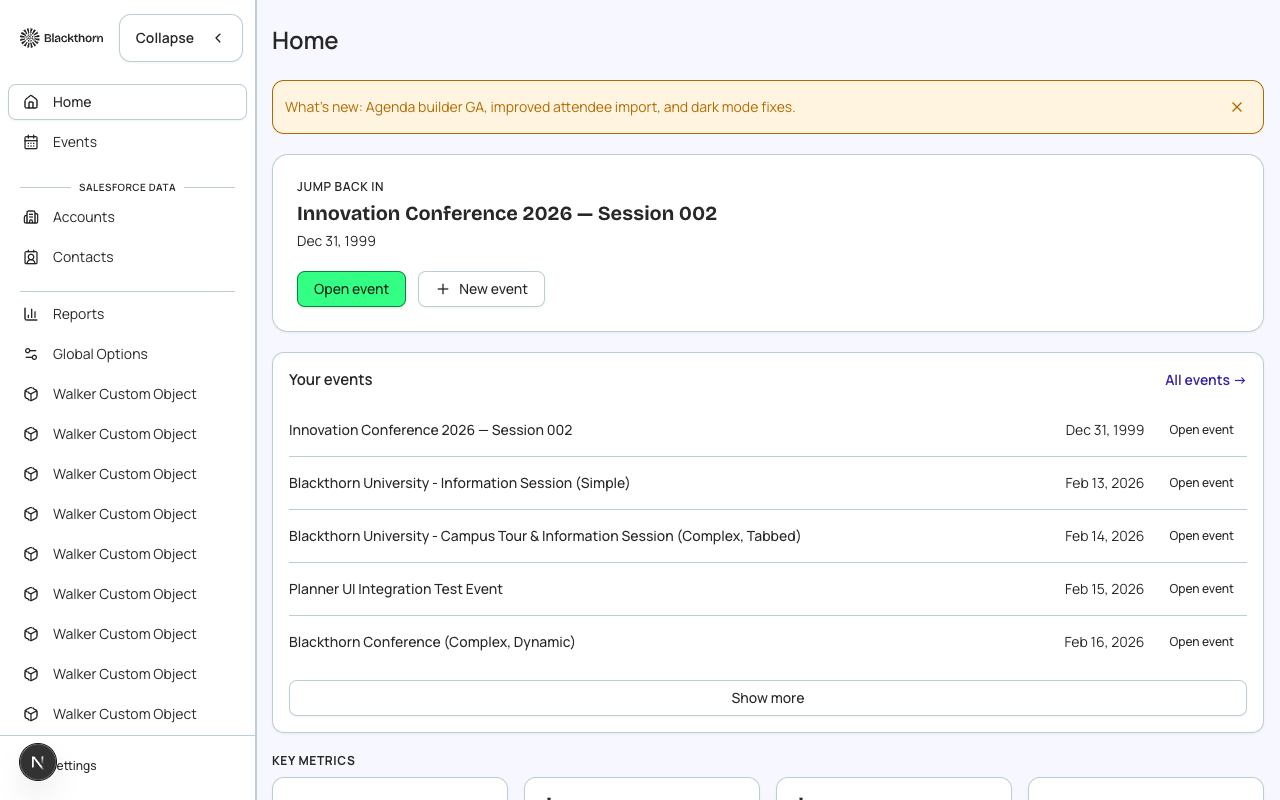
The Home Dashboard
The dashboard tiles surface the most important numbers across your entire workspace — not just one event. You will see total upcoming events, recent registrations, and headline revenue figures. Click any tile to drill into the relevant list or report.
- Upcoming Events — events with a future start date whose status is Active or Waitlist.
- Recent Registrations — registrations received in the last 7 days across all events.
- Total Revenue (current billing period) — sum of completed transactions.
- Quick-create button — opens the event creation wizard from anywhere on the screen.
Getting Started Quickly
- Log in with your Salesforce credentials. Forge authenticates via OAuth and inherits your org's permission model.
- Review the Upcoming Events tile. Each card links directly to that event's Overview tab.
- Click 'New Event' in the top-right corner to launch the creation wizard (Magic AI, Ol' Faithful manual form, or Clone from an existing event).
- Use the left-hand global sidebar to navigate between Events, Audiences, Communications, and other workspace areas.
The Roadmap Panel
The Roadmap panel (accessible from the Home screen or the sidebar footer) shows features currently in development, in beta, and recently shipped. Features in beta are opt-in — visit the /beta page to enable them for your workspace. The roadmap updates automatically as the Forge team ships.
Beta features are opt-in
To try a beta feature, navigate to Settings > Beta and toggle it on. Beta features may change shape before they graduate to general availability.
Personalizing Your Home View
Your profile (bottom of the left sidebar) lets you change display name, locale, and date/time preferences. Locale drives the language of the entire Forge interface. Time zone determines how event start/end times are displayed to you — the underlying Salesforce timestamps are always stored in UTC.
Salesforce connection
Forge connects to your Salesforce org via OAuth 2.0. Your session is scoped to your SF user's permissions — you will only see events and data your SF profile has access to.