Recipes
Virtual Event
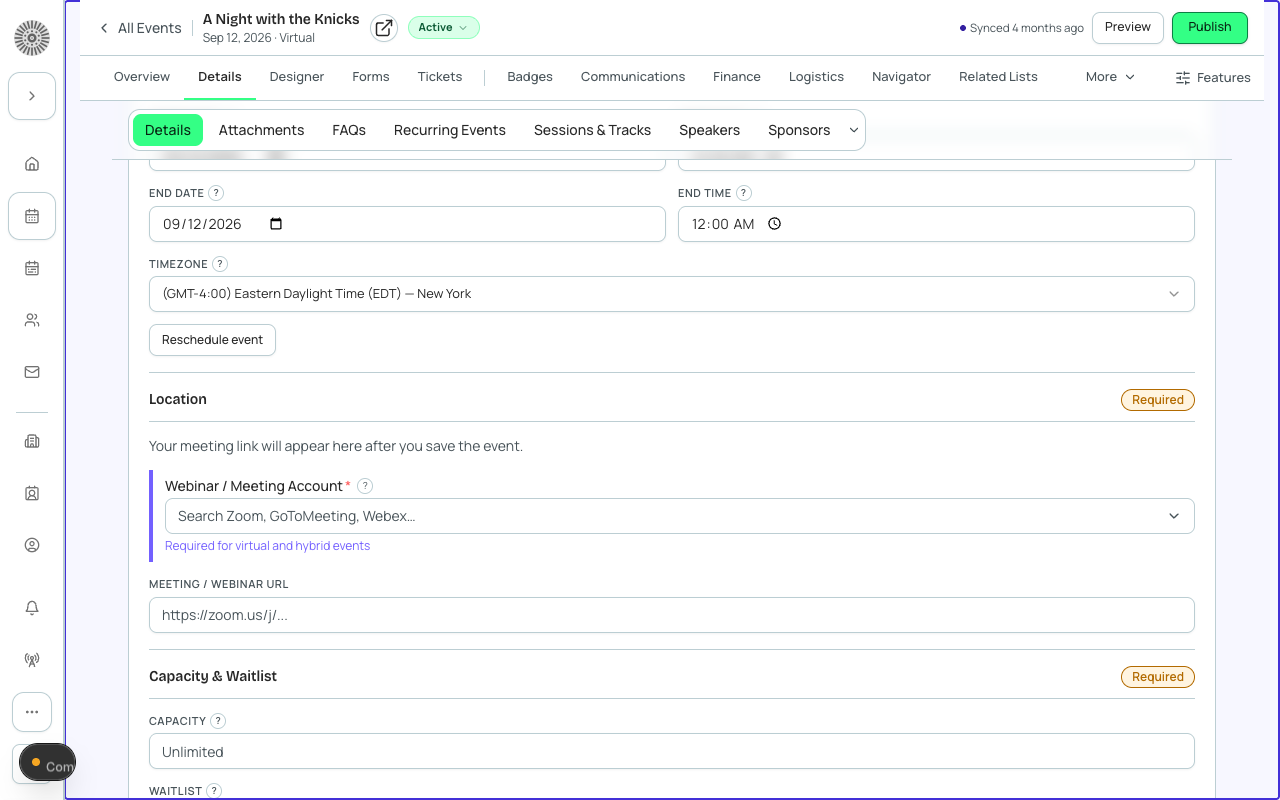
A virtual event is hosted entirely online — there is no physical venue. Forge sets the event's location type to Virtual and can display a streaming or meeting link on the registration page and in confirmation emails once an attendee registers.
Before you start
- Have your webinar or meeting URL ready (Zoom, Teams, Google Meet, Hopin, etc.).
- Decide whether the streaming link should be visible on the public registration page or sent only in the confirmation email after registration.
- If the event is paid, confirm your Payment Gateway is active.
Steps
- Click **Events** → **+ New Event** and choose **Ol' Faithful**.
- Set **Location Type** to *Virtual*. The venue address fields disappear — this is expected.
- Click **Create Event** and open the event workspace.
- On the **Event Info** tab, find the **Virtual Event URL** field and paste your meeting or streaming link. This URL appears on the confirmation page and in confirmation emails after registration.
- Go to **Tickets & Items** and add one or more ticket items. Set **Price** to 0 for a free webinar or enter a price for a paid virtual event.
- Open the **Communications** tab to review the automated confirmation email. The virtual event URL will appear in the template body — preview it to confirm the link renders correctly.
- On **Page Designer**, update the event description to mention it is 100% online and include any dial-in instructions for attendees who prefer phone audio.
- Set Status to *Active* on the Overview tab and share the registration link.
Keeping the link private until registration
If you do not want to display the streaming URL publicly before someone registers, leave the Virtual Event URL field blank on the public page and instead include it only in the confirmation email template. Attendees who register will receive the link; visitors browsing the public page will not.
What this creates in Salesforce
| Forge | SF Object | SF Field |
|---|---|---|
| Location Type = Virtual | conference360__Event__c | conference360__Location_Type__c |
| Virtual Event URL | conference360__Event__c | conference360__Virtual_Event_URL__c |
| Status | conference360__Event__c | conference360__Status__c |
| Registration Open | conference360__Event__c | Visible__c |
| Ticket (per tier) | conference360__Event_Item__c | conference360__Price__c / conference360__Free__c |
Attendee email addresses are PII
Confirmation emails are sent using the attendee's email address stored in Salesforce (`conference360__Attendee__c.conference360__Email__c`). This data is never copied to Forge's own database — it is fetched just-in-time from Salesforce and kept only in your Salesforce org.
Verify
- The public registration page shows no venue address — only event date, description, and tickets.
- After a test registration, the confirmation email contains the virtual event URL.
- The Salesforce event record shows `conference360__Location_Type__c` = Virtual.
- The attendee record is created with Status = Registered and the meeting link is accessible via the confirmation email.