Recipes
Recurring Events (Beta)
BetaBeta feature
Recurring Events is a beta feature. Enable it on the **Beta** page (`/beta`) in Forge. The configuration UI and data model may change before general availability. Do not use recurring events for critical production events without validating the current behavior in your org.
Recurring events let you define a schedule (weekly, monthly, custom) and have Forge automatically generate a series of event occurrences from a single configuration. Each occurrence is a full `conference360__Event__c` record in Salesforce, but they are linked as a group so you can manage them together.
Before you start
- Enable the Recurring Events beta on the `/beta` page.
- Have a clear recurrence schedule in mind: frequency (weekly, bi-weekly, monthly), day of week, time, and either an end date or a maximum number of occurrences.
- Decide whether attendees who register for one occurrence should be automatically offered the next — this is a manual or communications-based workflow, not automated by default.
- Note: Each occurrence is an independent event record. Attendee lists, sessions, and tickets are not automatically shared across occurrences.
Steps
- Create your base event with all the standard details: name, tickets, form, location type, page design.
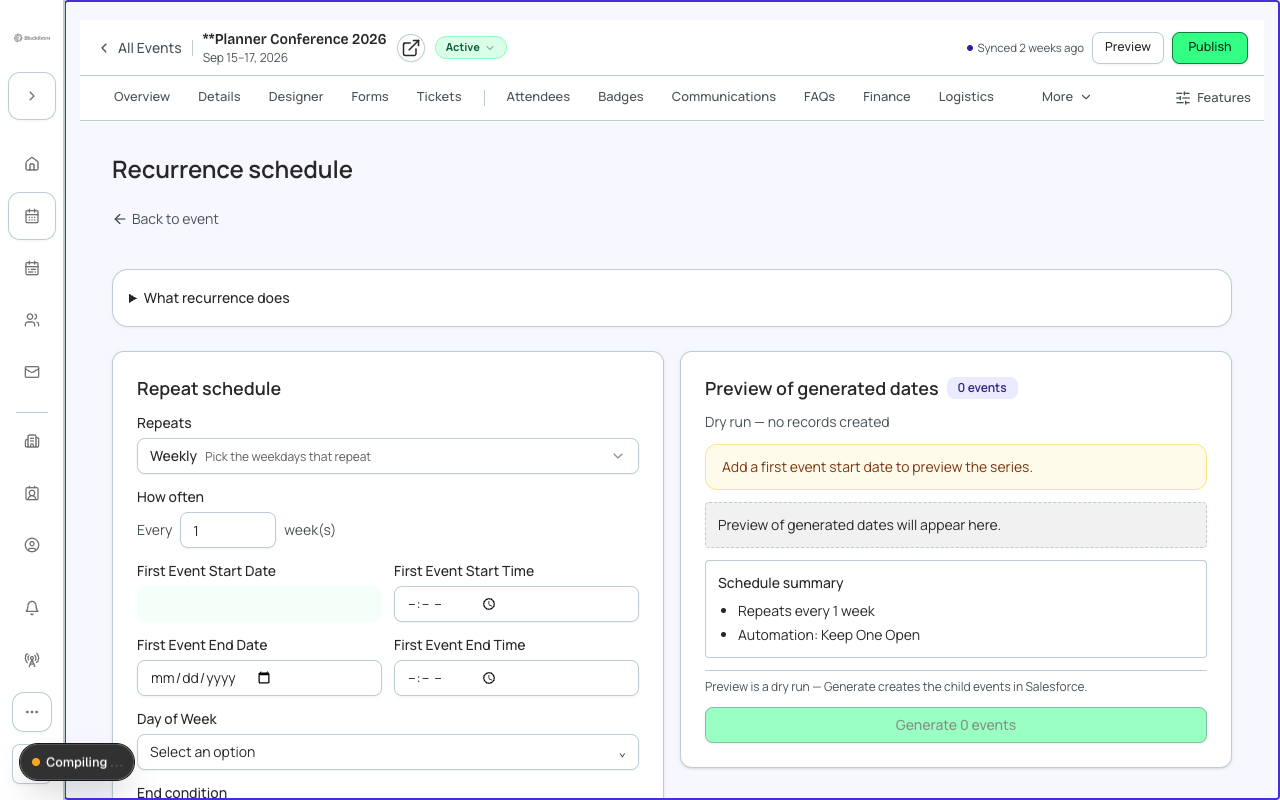
- Open the **Recurring Events** beta tab in the event workspace.
- Configure the recurrence: set **Frequency** (Weekly / Bi-Weekly / Monthly), the **Day and Time** for each occurrence, and either an **End Date** or a **Number of Occurrences**.
- Click **Generate Occurrences**. Forge creates the series of `conference360__Event__c` records in Salesforce, each with the base event's settings copied forward and the correct start/end date for that occurrence.
- Review the generated occurrences — they appear as a list with links to each individual event workspace. Open any occurrence to customize it further (different speaker, modified description, etc.).
- Each occurrence has its own registration link. To promote the series, share the parent event's registration page — it includes an occurrence picker so attendees can choose which date to attend.
- When you need to cancel one occurrence, open that event and change its Status to *Cancelled* without affecting the rest of the series.
Managing the series over time
Changes made to the parent event template do not automatically propagate to existing occurrences. If you need to update all future occurrences (e.g., change the time or add a new ticket tier), use the **Update All Future Occurrences** option on the Recurring Events tab. Past occurrences are never modified.
What this creates in Salesforce
| Forge | SF Object | SF Field |
|---|---|---|
| Parent event template | conference360__Event__c | Name / conference360__Status__c |
| Each occurrence | conference360__Event__c | Name / conference360__Event_Start_Date__c / conference360__Event_End_Date__c |
| Event group link | conference360__Event__c | conference360__Event_Group__c |
| Attendee (per occurrence) | conference360__Attendee__c | conference360__Event__c (points to the specific occurrence) |
Occurrences are real Event records
Each occurrence is a fully independent `conference360__Event__c` record in Salesforce. They are grouped via the `conference360__Event_Group__c` relationship, which lets you run Salesforce reports across the full series. This also means each occurrence can have its own attendee list, capacity, and tickets.
Verify
- The Recurring Events beta is enabled at `/beta`.
- After generating occurrences, the Recurring Events tab lists all events in the series with correct dates.
- Each occurrence appears as a separate record in the Salesforce `conference360__Event__c` object.
- All occurrences share the same `conference360__Event_Group__c` value.
- Registering for one occurrence does not affect the attendee count on other occurrences.
- Cancelling one occurrence sets only that record's Status to Cancelled — other occurrences remain Active.