Recipes
Themes, Branding, and the Public Page
Every event in Forge has a public-facing registration page that attendees see when they click your event link. The Page Designer lets you control the look and feel — hero image, colors, logo, section layout — so the registration experience matches your organization's brand.
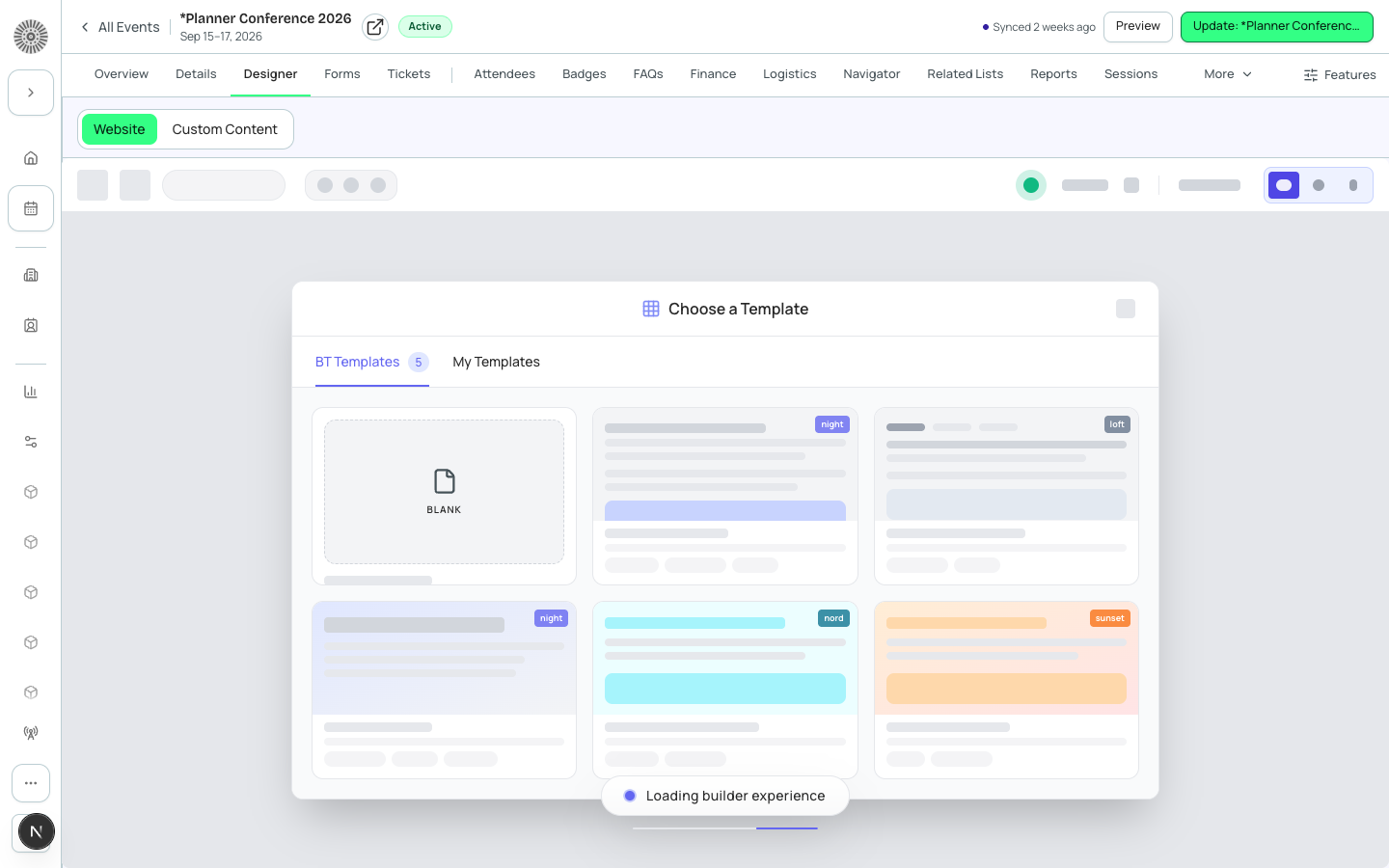
Before you start
- Have your logo file ready (PNG or SVG, transparent background recommended).
- Know your brand's primary color hex code — this sets the button and accent color on the registration page.
- Have a high-resolution hero image prepared: minimum 1200px wide, 16:9 or 2:1 ratio works best.
- If your organization uses a global theme across all events, check if an admin-level theme has already been set up under **Admin** → **Branding**. A global theme auto-applies to new events and reduces per-event design work.
Steps
- Open your event workspace and click the **Page Designer** tab.
- Click **Hero Image** and upload or select your event's banner image. The preview updates immediately. Adjust the focal point if the subject of the image is off-center.
- Click **Colors** (or the paint bucket icon). Set the **Primary Color** to your brand hex (e.g., `#7360FF` for Blackthorn violet). This color applies to the registration button, section highlights, and links.
- Click **Logo** to upload your organization's logo. It appears in the header of the registration page above the event title.
- Review the section layout. The Page Designer shows draggable sections: Hero, Event Details, Agenda/Sessions, Speakers, Sponsors, Registration Form, and Footer. Drag sections to reorder them. Hide sections you do not need by toggling them off.
- Click any text block on the preview to edit it inline — update the event tagline, description, or call-to-action text.
- Use the **Preview** button to open the live registration page URL in a new tab and verify it renders correctly at different viewport sizes (desktop, tablet, mobile).
- If your organization has a custom domain configured, the registration URL uses that domain. Otherwise it uses the default Forge public URL.
- Click **Save** to publish your Page Designer changes. Changes take effect immediately on the live registration page.
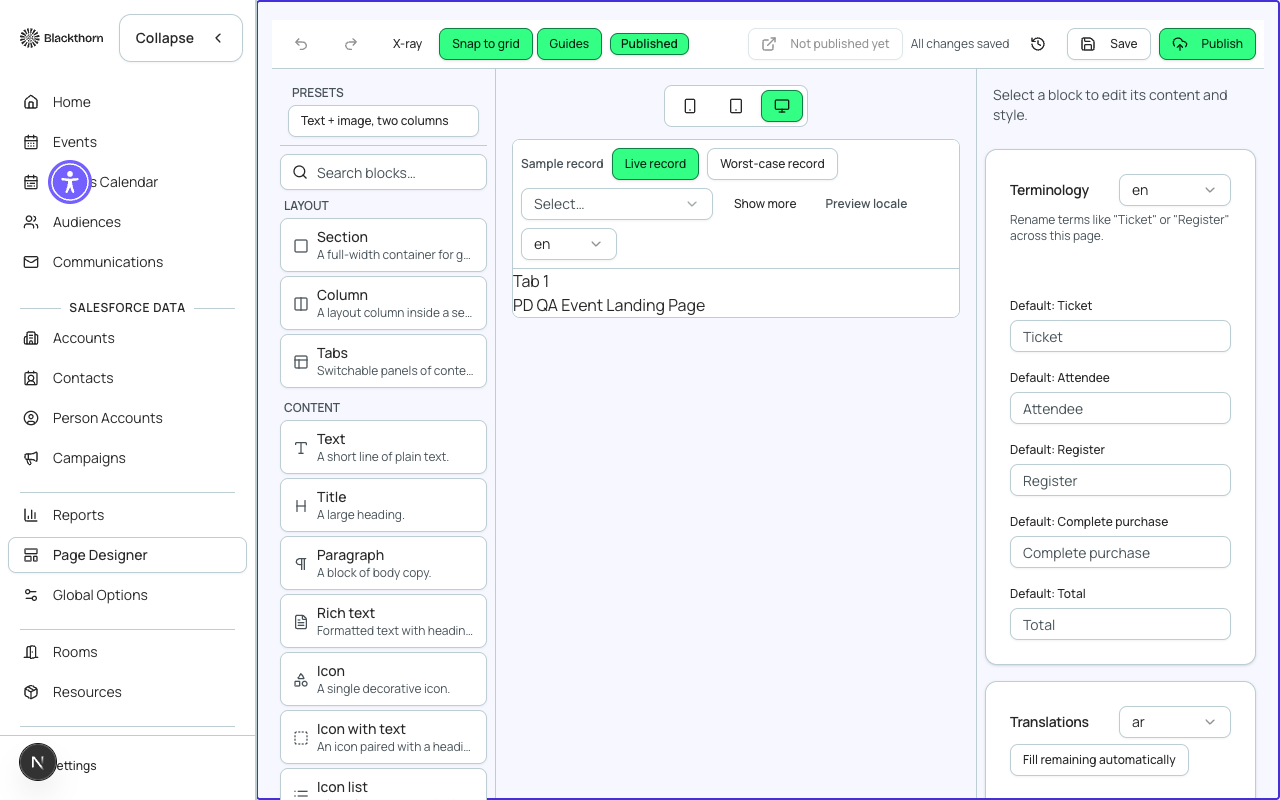
Global themes save time for event series
If you manage multiple events under a single brand, ask your Forge admin to configure a global theme under Admin → Branding. New events inherit the global logo, primary color, and font choices automatically. You can still override individual elements per event in the Page Designer.
Section reference
| Section | Content | Configurable? |
|---|---|---|
| Hero | Event title, date, location, hero image, CTA button | Image, focal point, button label |
| Event Details | Description, event type, format, tags | Rich text, show/hide |
| Agenda | Session list from Sessions tab | Show/hide; pulls live from Sessions data |
| Speakers | Speaker cards from Speakers tab | Show/hide; pulls live from Speaker records |
| Sponsors | Sponsor logos from Sponsors tab | Show/hide; pulls live from Sponsor records |
| Registration Form | Ticket selection and form questions | Always shown; form questions configured on Forms tab |
| Footer | Contact info, social links, legal | Editable text fields |
Page Designer does not write to Salesforce
The Page Designer configuration (colors, images, section order) is stored in Forge's own settings layer — not in Salesforce fields. However, the content that appears in each section (speaker names, session titles, sponsor logos) is pulled live from Salesforce records each time the page loads.
Verify
- The public registration URL shows your uploaded hero image and brand color on buttons.
- Your organization's logo appears in the page header.
- Sections are in the order you configured — e.g., Speakers appears above Sponsors if you dragged it there.
- The page renders correctly at mobile width (375px) without horizontal scroll.
- Dark mode (if the attendee's OS prefers dark mode) shows the correct contrast — Forge applies automatic dark-mode adjustments to the public page.
- The registration form button color matches your primary brand color.