Recipes
Paid Tiered Event
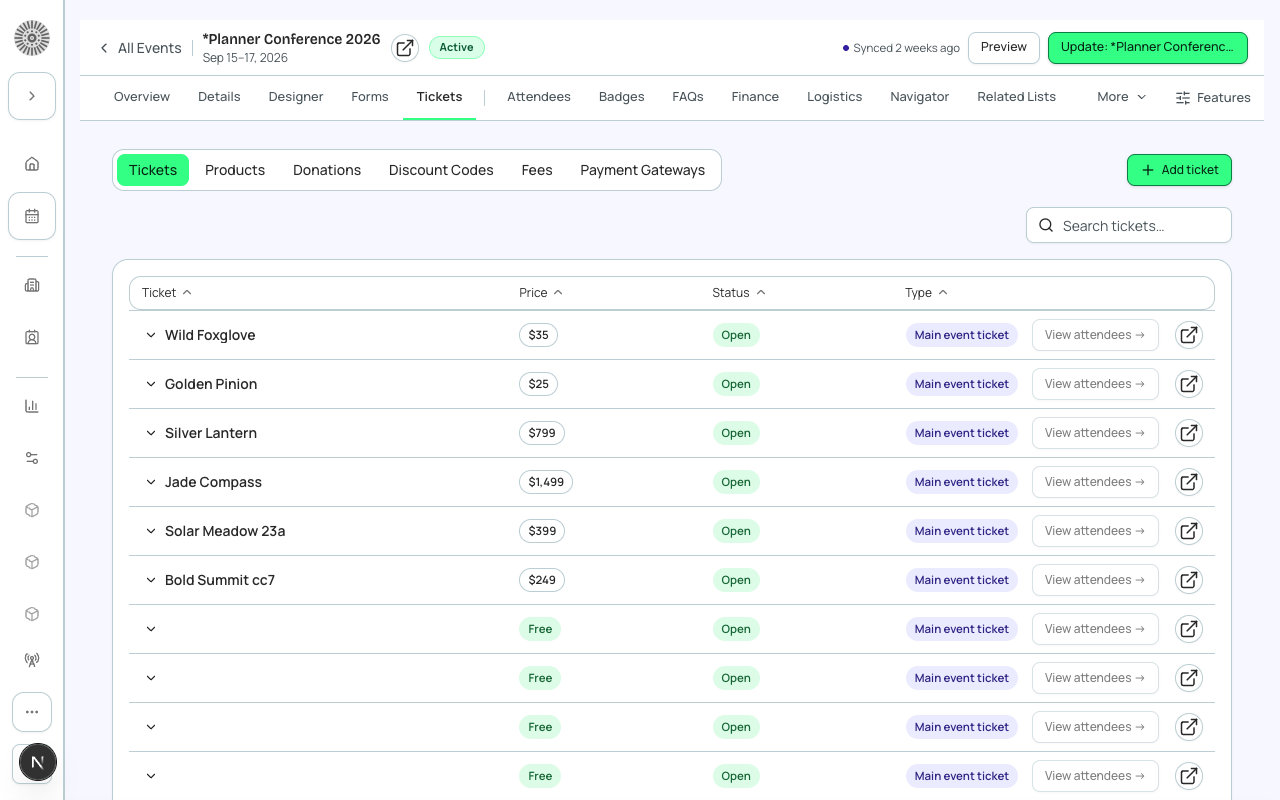
A tiered paid event offers multiple ticket types at different price points — for example, Early Bird, Standard, and VIP. The *Planner Conference 2026* demo event is a good reference: it uses tiers from $25 (digital access) through $1,499 (platinum) plus a $50 donation item.
Before you start
- A `bt_stripe__Payment_Gateway__c` record must exist and be active in your Salesforce org.
- Map out your tier names, prices, quantities, and any time-bound availability (e.g., Early Bird ends July 31).
- Decide if any tiers should be hidden initially and revealed later — you can change ticket Status between On Sale, Sold Out, and Hidden at any time.
Steps
- Create or open your event and navigate to **Tickets & Items**.
- Click **+ New Item**. Set **Type** to *Ticket*, enter the tier name (e.g., *Early Bird*), set **Price** to the tier amount (e.g., 25), set a **Quantity** if you want to cap this tier (e.g., 200 early-bird slots), and click **Save**.
- Repeat for each tier: Standard ($50), VIP ($249), Platinum ($1,499), and so on. Tiers appear in the order created — drag to reorder them on the registration page.
- To add a donation option, click **+ New Item**, set **Type** to *Donation*, enter a suggested amount in **Price** (attendees can change this at checkout), and name it (e.g., *Donate to Scholarship Fund*).
- To apply a processing fee transparently, go to **Event Info** → **Fees** and configure a `bt_stripe__Fee__c` record — either a flat amount or a percentage. Forge adds it to the checkout total automatically.
- To offer early-bird pricing, set the current ticket's **Status** to *On Sale*. When the early-bird period closes, change it to *Sold Out* or *Hidden* and ensure the standard-price ticket is *On Sale*.
- Create discount codes under **Tickets & Items** → **Discount Codes**. Set the code, discount type (percentage or flat), and max uses. Share codes with VIP guests or sponsors.
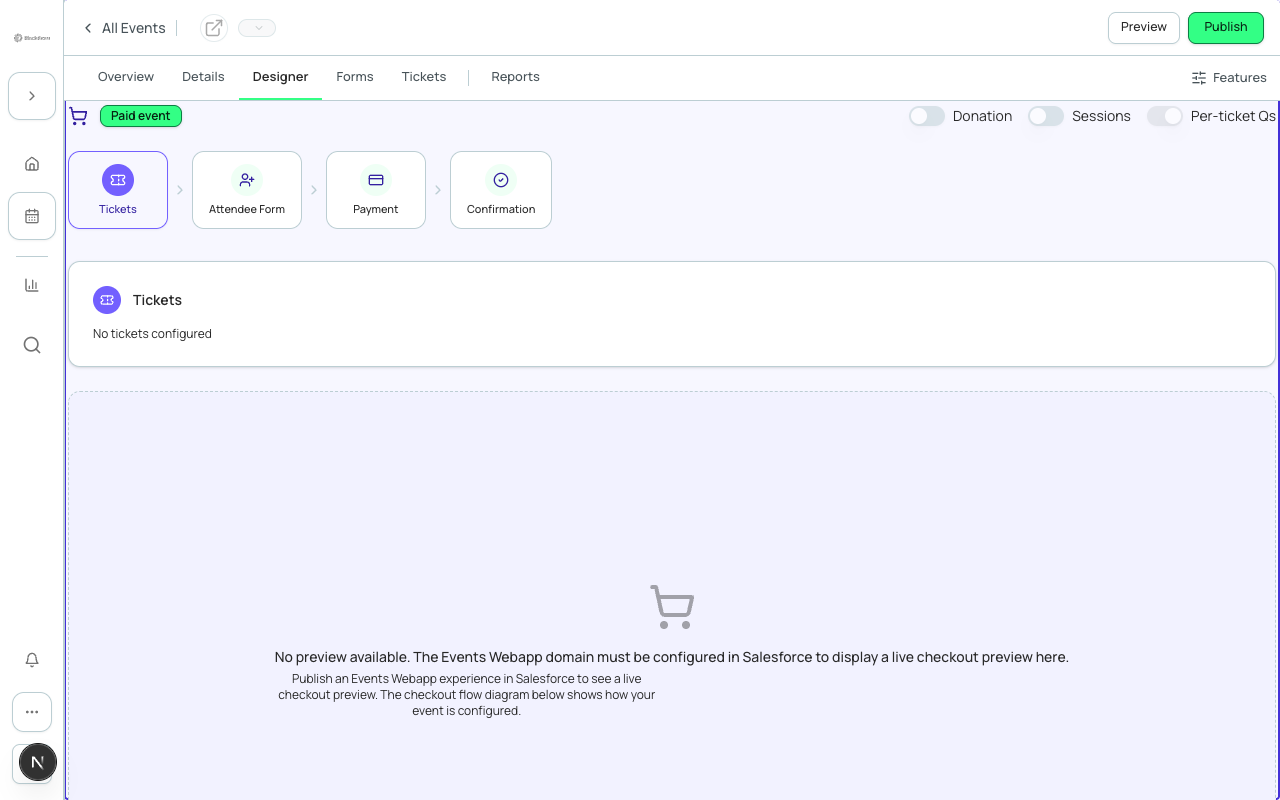
- Preview the checkout flow on **Checkout Preview** (beta tab) to confirm all tiers, fees, and the donation item display correctly.
- Set Status to *Active* and share the registration link.
What this creates in Salesforce
Salesforce Field Mapping
| Forge | SF Object | SF Field |
|---|---|---|
| Ticket tier (per item) | conference360__Event_Item__c | Name / conference360__Price__c / conference360__Type__c / conference360__Status__c / conference360__Quantity__c |
| Donation item | conference360__Event_Item__c | conference360__Type__c = Donation |
| Processing fee | bt_stripe__Fee__c | type, amount/percentage |
| Discount code | bt_stripe__Code__c | Name / bt_stripe__Discount_Type__c / bt_stripe__Discount_Amount__c / bt_stripe__Max_Uses__c |
| Order (per registration) | bt_stripe__Sales_Document__c | status, total, gateway |
| Transaction (per payment) | bt_stripe__Transaction__c | amount, status |
Card data is never stored
Forge never stores credit card numbers, CVVs, or billing addresses. Payment is processed directly through the configured gateway (Stripe, Authorize.Net, etc.). The `bt_stripe__Transaction__c` record contains only the transaction amount, status (Completed / Refunded), and gateway reference — no card or cardholder PII.
Verify
- All ticket tiers appear on the public registration page with correct prices.
- The donation item appears as an optional add-on (not required for registration).
- The processing fee is shown in the checkout summary as a separate line item.
- A discount code reduces the total when applied at checkout.
- After a test purchase, a `bt_stripe__Sales_Document__c` record and a `bt_stripe__Transaction__c` record exist in Salesforce with Status = Completed.
- The attendee record is created with the correct ticket tier referenced.