Recipes
In-Person Event
An in-person (venue) event requires a physical location. Forge displays the venue address on the public registration page and can show it on confirmation emails and the event map. This recipe covers setting up the venue, managing room capacity, and connecting sessions to rooms.
Before you start
- Have the full venue address ready: street, city, state/province, postal code, country.
- Know your maximum headcount for the venue (this drives the capacity waitlist).
- If you are assigning sessions to rooms, have a list of room names and their individual capacities.
Steps
- Click **Events** → **+ New Event** and choose **Ol' Faithful**.
- Set **Location Type** to *Venue*. Click **Create Event**.
- Open the **Event Info** tab. Enter the venue name and address in the venue fields. Forge passes this to the public page and embeds a map if you enable it.
- Set **Maximum Attendees** to your venue's headcount limit. When registrations reach this number, Forge automatically moves new registrants to the waitlist.
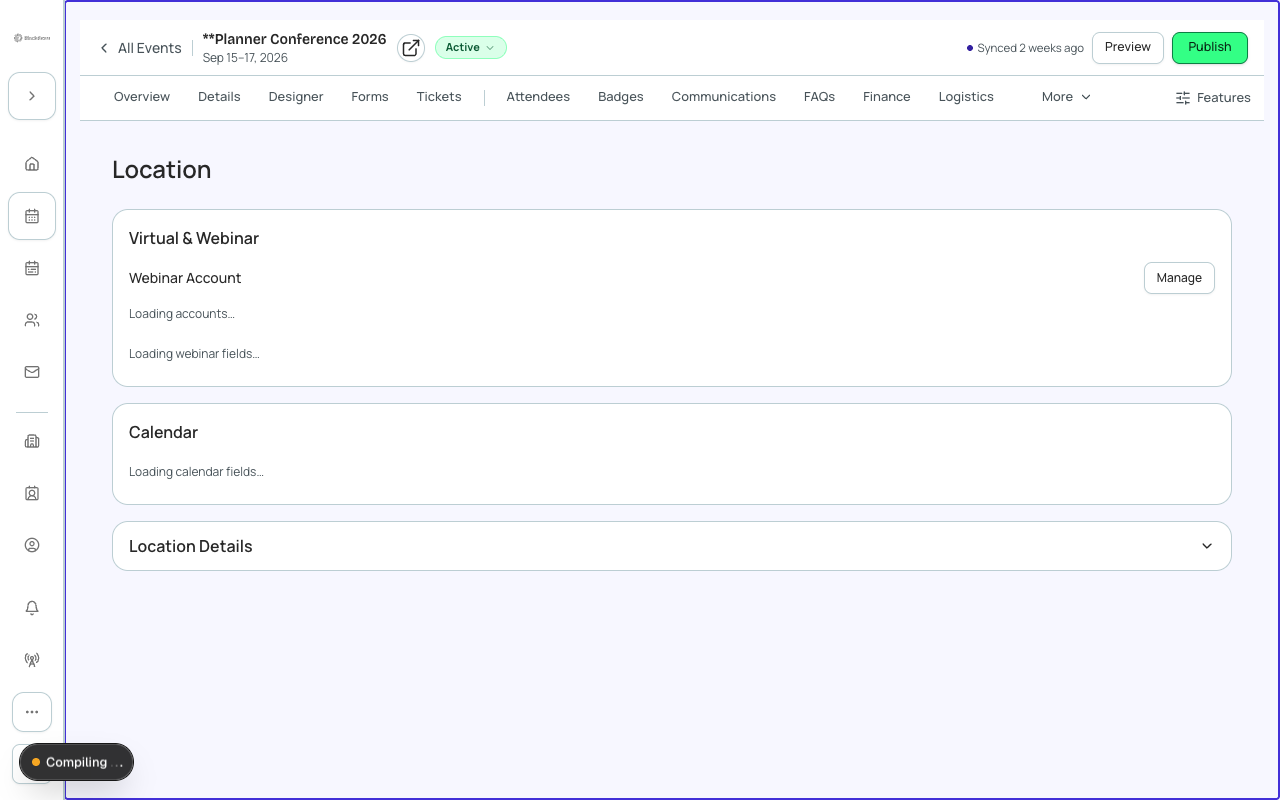
- Click the **Location** tab in the event workspace. Confirm the address renders correctly on the map preview. Adjust the map zoom and pin label if needed.
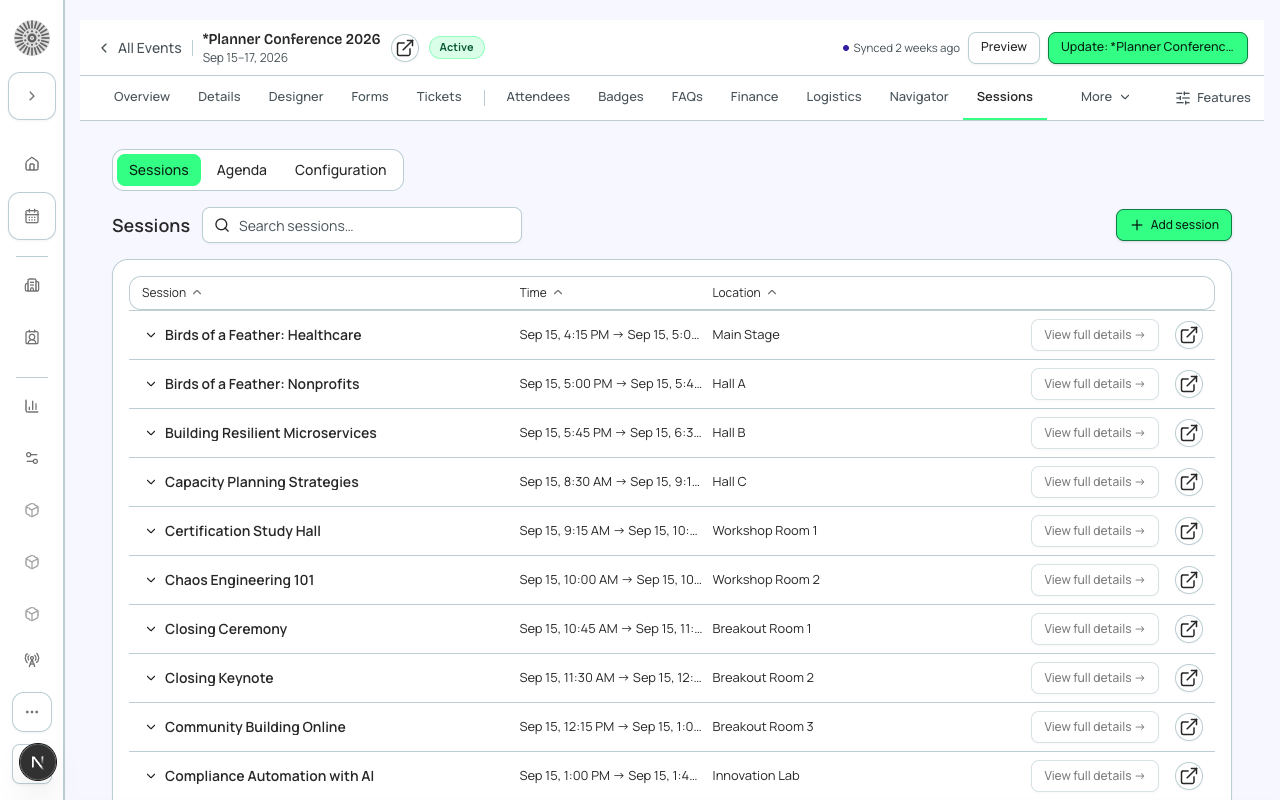
- If your event has multiple rooms for breakout sessions, click the **Sessions** tab and add sessions. For each session, assign it to a room (Room field) and set the session-level **Maximum Registrants** to the room's capacity.
- Add tickets under **Tickets & Items** — at minimum a General Admission ticket. Add VIP or early-bird tiers as needed.
- On **Page Designer**, review that the venue address block appears on the public page. Add parking or transit directions in the event description.
- Set Status to *Active* and publish the registration link.
What this creates in Salesforce
Salesforce Field Mapping
| Forge | SF Object | SF Field |
|---|---|---|
| Location Type = Venue | conference360__Event__c | conference360__Location_Type__c |
| Max Attendees | conference360__Event__c | conference360__Maximum_Attendees__c |
| Session | conference360__Session__c | Name |
| Session Room | conference360__Session__c | conference360__Room__c |
| Session Capacity | conference360__Session__c | conference360__Maximum_Registrants__c |
| Session Start / End | conference360__Session__c | conference360__Session_Start__c / conference360__Session_End__c |
Capacity is enforced by Salesforce
The `conference360__Maximum_Attendees__c` field on the Event record is the single source of truth for venue capacity. Forge reads this value and displays a waitlist prompt automatically when the limit is reached — no configuration in Forge beyond setting the number.
Verify
- The public registration page displays the venue address and a map pin.
- Registering beyond the Maximum Attendees limit results in a Waitlisted attendee status rather than an error.
- Sessions are listed on the event page with correct room assignments.
- The Salesforce event record shows Location Type = Venue with address fields populated.