Admin
Users and Accounts
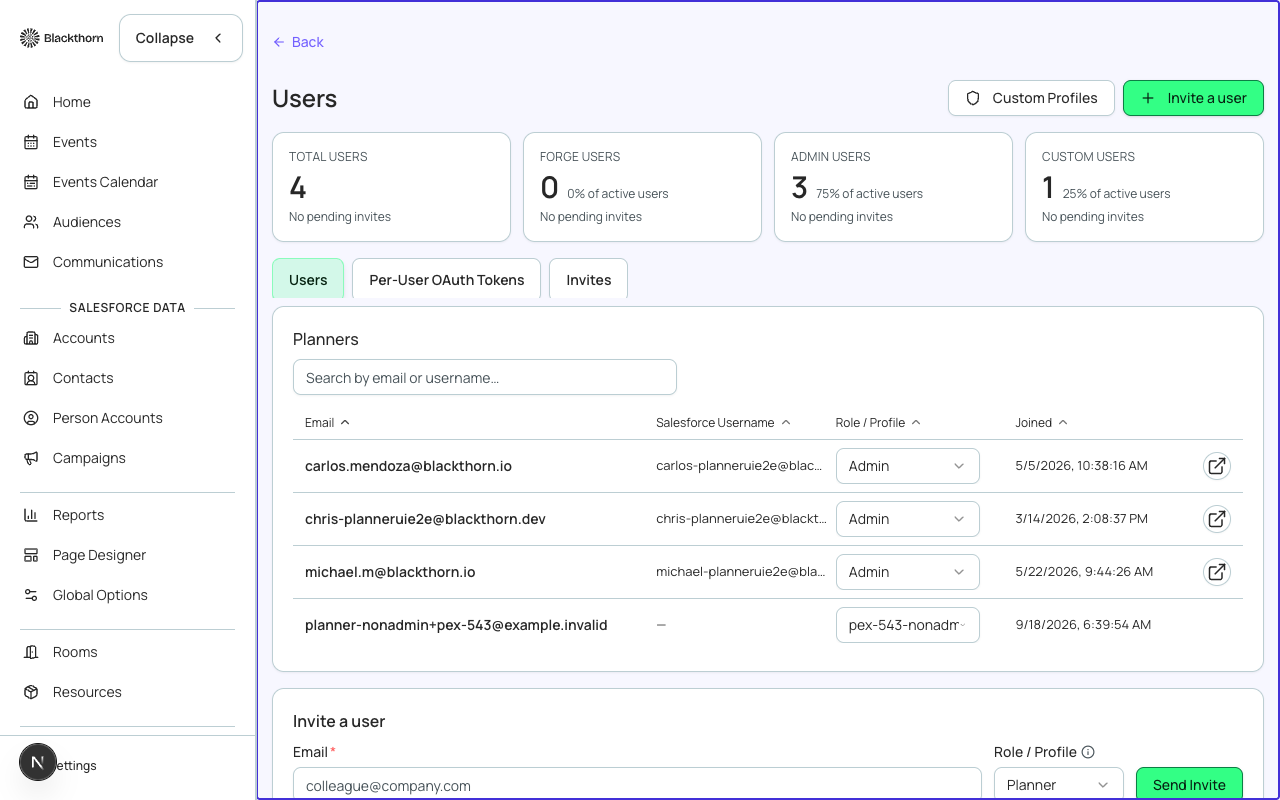
The Users & Accounts page is where you manage who has access to Forge, what they can do, and how they are organized. You can invite new users, assign profiles, suspend access, and view the invitation status of pending team members.
User states
| State | Meaning |
|---|---|
| Active | User has accepted their invitation and can log in. |
| Invited | Invitation email has been sent; user has not yet accepted. |
| Suspended | User account is locked. The user cannot log in but their activity history is preserved. |
| Removed | User has been deleted from Forge. Cannot be reinstated; invite them again if needed. |
Inviting a new user
- Go to Admin → Users & Accounts and click Invite User.
- Enter the user's email address.
- Select a Profile to define what they can access.
- Optionally enter their first and last name; if left blank, Forge will prompt them to enter it on first login.
- Click Send Invitation. The user receives an email with a secure, time-limited link to set their password and activate their account.
- The invitation expires after 7 days. If the user did not receive or clicks an expired link, use the Resend Invitation action from the user row.
Changing a user's profile
Open any active user and click Edit. Change the Profile field and click Save. The change takes effect at the user's next page load — they do not need to log out and back in.
Suspending a user
Use Suspend to immediately block a user from logging in without removing their account. A suspended user's event assignments and history remain intact. Use this when an employee is on leave or has left the organization temporarily.
Removing a user
Remove permanently revokes access. If the removed user owned events or other records in Forge, those records remain and are reassignable to another user. Re-inviting the same email address creates a fresh user account with no history.
Salesforce users
A Forge user account is separate from a Salesforce user. Removing a user from Forge does not deactivate their Salesforce user, and vice versa. Manage Salesforce user access in Salesforce Setup.
Accounts (multi-tenant)
For organizations that have multiple Forge accounts (e.g., a parent company managing several sub-brands), the Accounts tab lists each connected account. Switching accounts is available to users with the System Administrator profile who have been granted access to more than one account.