Admin
Payment Gateways
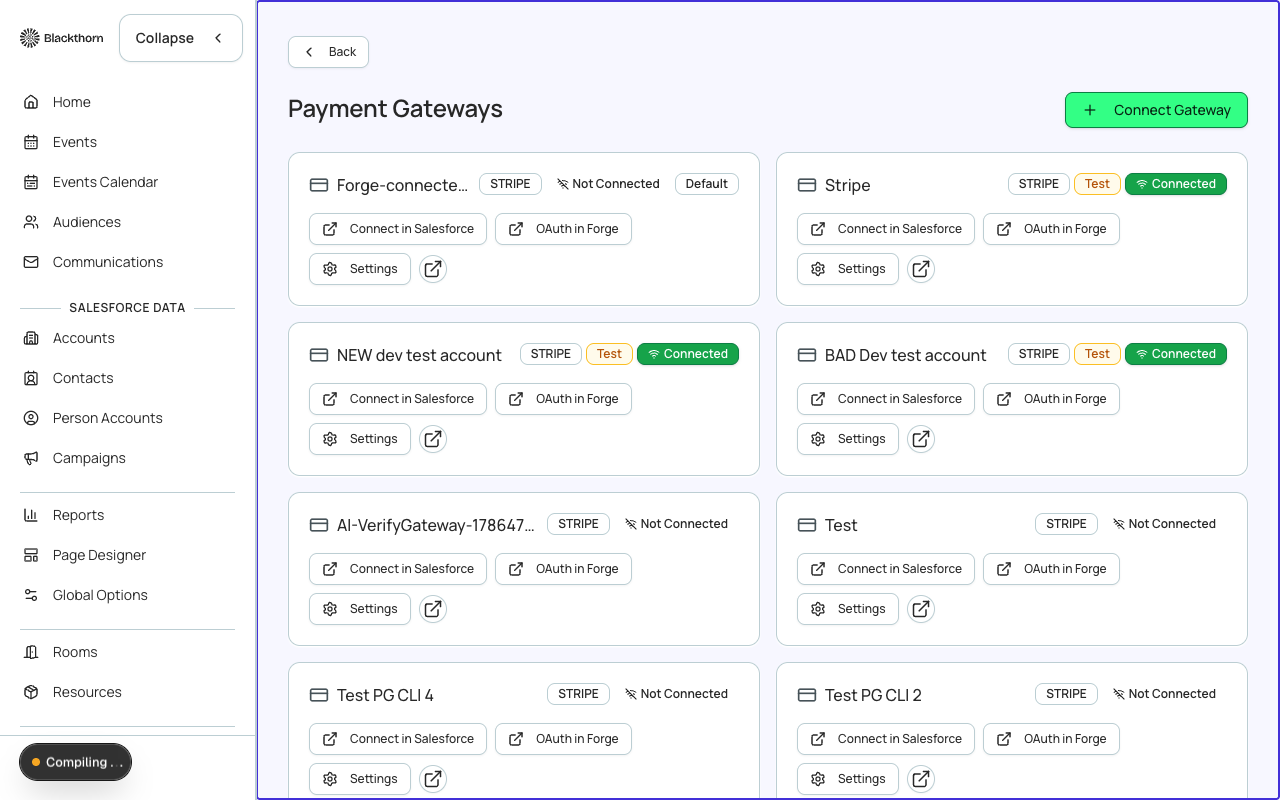
Payment gateways connect Forge to your payment processor so attendees can pay for tickets online. Forge supports Stripe and Authorize.Net. All charge operations run through the Forge executor — Forge creates a one-time charge and records the Transaction in Salesforce. Recurring giving uses Forge's own recurrence engine, not Stripe Subscriptions.
How gateways work
Each gateway record stores the API credentials (publishable key and secret key for Stripe; login ID and transaction key for Authorize.Net). Forge stores the secret key encrypted and never logs it. When a checkout succeeds, Forge creates a Transaction record in Salesforce linked to the gateway.
Recurring payments
Forge never uses Stripe Subscriptions or the bt_stripe__Subscription2__c object. All recurring-payment schedules are powered by bt_stripe__Payment_Schedule__c and scheduled Apex — not the gateway's native subscription billing. This ensures parity across Stripe, Authorize.Net, and other gateways.
| Forge | SF Object | SF Field |
|---|---|---|
| Gateway record | bt_stripe__Payment_Gateway__c | Name, bt_stripe__Provider__c |
| Transaction | bt_stripe__Transaction__c | bt_stripe__Amount__c, bt_stripe__Status__c (Completed/Refunded) |
| Order/Invoice | bt_stripe__Sales_Document__c | bt_stripe__Status__c, bt_stripe__Total__c |
| Payment Schedule | bt_stripe__Payment_Schedule__c | cadence, next run date (recurring only) |
Adding a Stripe gateway
- Go to Admin → Payment Gateways and click New Gateway.
- Choose Stripe as the provider.
- Enter your Stripe Publishable Key and Secret Key. Find these in your Stripe Dashboard under Developers → API keys.
- Give the gateway a recognizable name (e.g., "Stripe — Production").
- Set Status to Active.
- Click Save. Forge validates the credentials by performing a test API call. If the validation fails, double-check that you are using Live keys (not Test keys) for production events.
Adding an Authorize.Net gateway
- Go to Admin → Payment Gateways and click New Gateway.
- Choose Authorize.Net as the provider.
- Enter your API Login ID and Transaction Key from your Authorize.Net merchant account.
- Choose between the Sandbox and Production endpoints.
- Set Status to Active and click Save.
Assigning a gateway to an event
Each paid event uses the gateway assigned on its Event Info tab. If no gateway is assigned, Forge falls back to the org's default gateway (the first Active gateway alphabetically). To override for a specific event, open the event, go to Event Info, and select the gateway from the Payment Gateway field.
Test mode vs. live mode
For development and QA, create a separate gateway record using Stripe Test keys or Authorize.Net sandbox credentials and label it clearly. Never use test-mode credentials on a live event — attendees' charges will be declined by the processor.
PCI compliance
Forge never stores raw card numbers, CVV codes, or full card data in Salesforce or Postgres. Card tokenization happens client-side in the browser via the payment processor's secure JavaScript library before any data reaches Forge servers.