Welcome
The 60-Second Tour
If you have 60 seconds, here's everything you need to know to orient yourself in Forge before diving deeper.
10 seconds: Log in
Forge authenticates through Salesforce OAuth. Click "Log In with Salesforce", authorize the app once, and you're in. Your Salesforce user profile determines what you can see and do.
20 seconds: Find your event
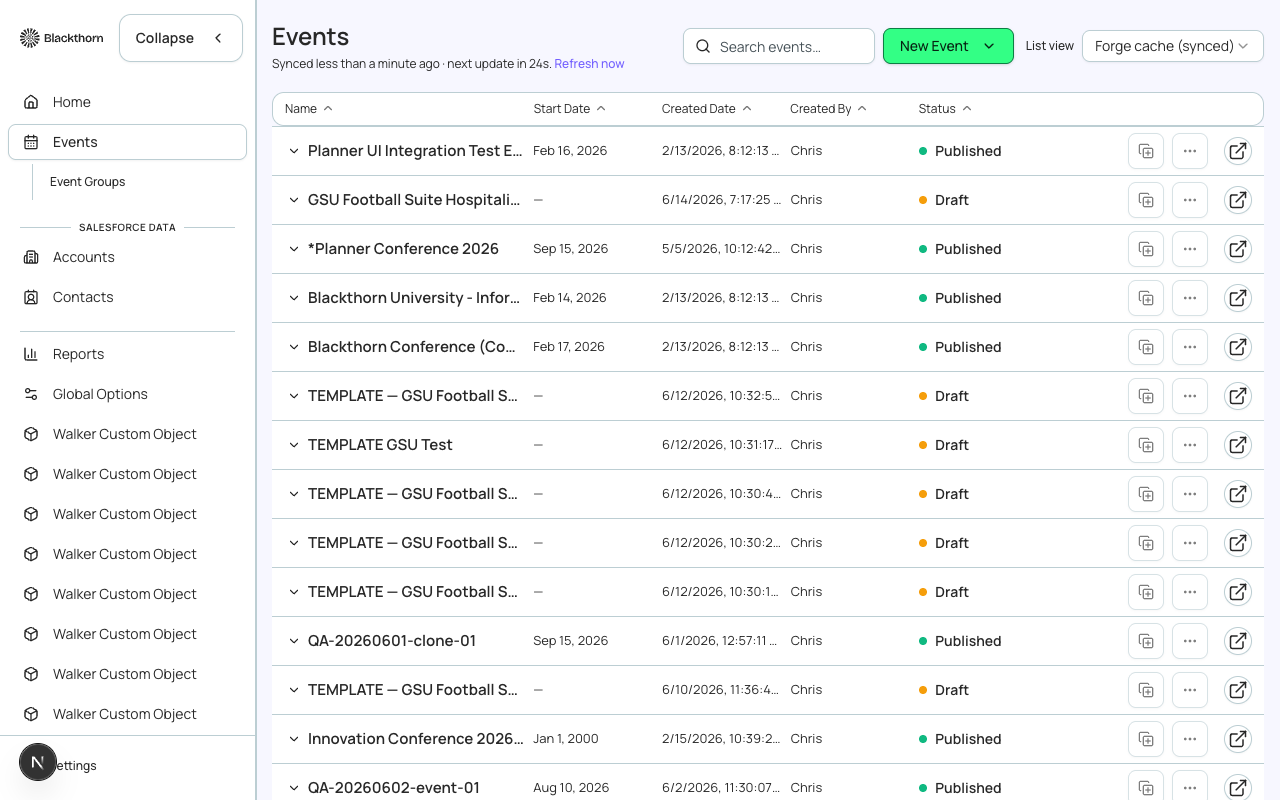
From the Home dashboard, click Events in the left sidebar. Every event in your org appears in this list. Use the search bar or status filter to find the one you need, then click it to open the event workspace.
30 seconds: Understand the workspace
An event workspace is a tabbed interface for everything related to one event: Overview, Event Info, Tickets & Items, Attendees, Sessions, Speakers, Sponsors, Forms, Communications, and more. Tabs adapt to the features enabled for your event.
45 seconds: Make a change
Click a field to edit it inline, or open a record's detail panel. When you save, the change writes directly to Salesforce. You'll see a confirmation toast, and the record in Salesforce updates immediately.
60 seconds: Understand the data flow
Everything in Forge is a Salesforce record. When you create a ticket, Forge creates a conference360__Event_Item__c. When an attendee registers, Forge creates a conference360__Attendee__c. No data ever lives only in Forge.
Every save is a Salesforce write
Forge has no 'draft mode' for records. When you click Save, the record is written to Salesforce immediately. There is no separate publish step for most record types — changes are live as soon as they are saved.
Need more?
Continue to Getting Started for a detailed walkthrough of login, navigation, and first-run setup. Or jump to Core Concepts if you prefer to learn the mental models first.